
Your server didn’t crash. It just stopped waiting.
Picture this: a user loads your app, a spinning cursor hangs for 30 seconds, and the browser spits back a white page that says “504 Gateway Timeout.” Nothing crashed. No smoke, no error in your app logs. Just silence, and then a timeout.
The HTTP spec defines a 504 as a gateway or proxy server waiting on a response from an upstream server that never arrived in time. The gateway hit its patience limit, gave up, and told the user’s browser about it.
That’s the key distinction. A 504 is a communication timeout between servers, not evidence that your server is down. Compare it to a 502, where the upstream responded but sent something garbled. Or a 503, where the server itself is overloaded or offline. A 504 means the upstream was simply too slow.
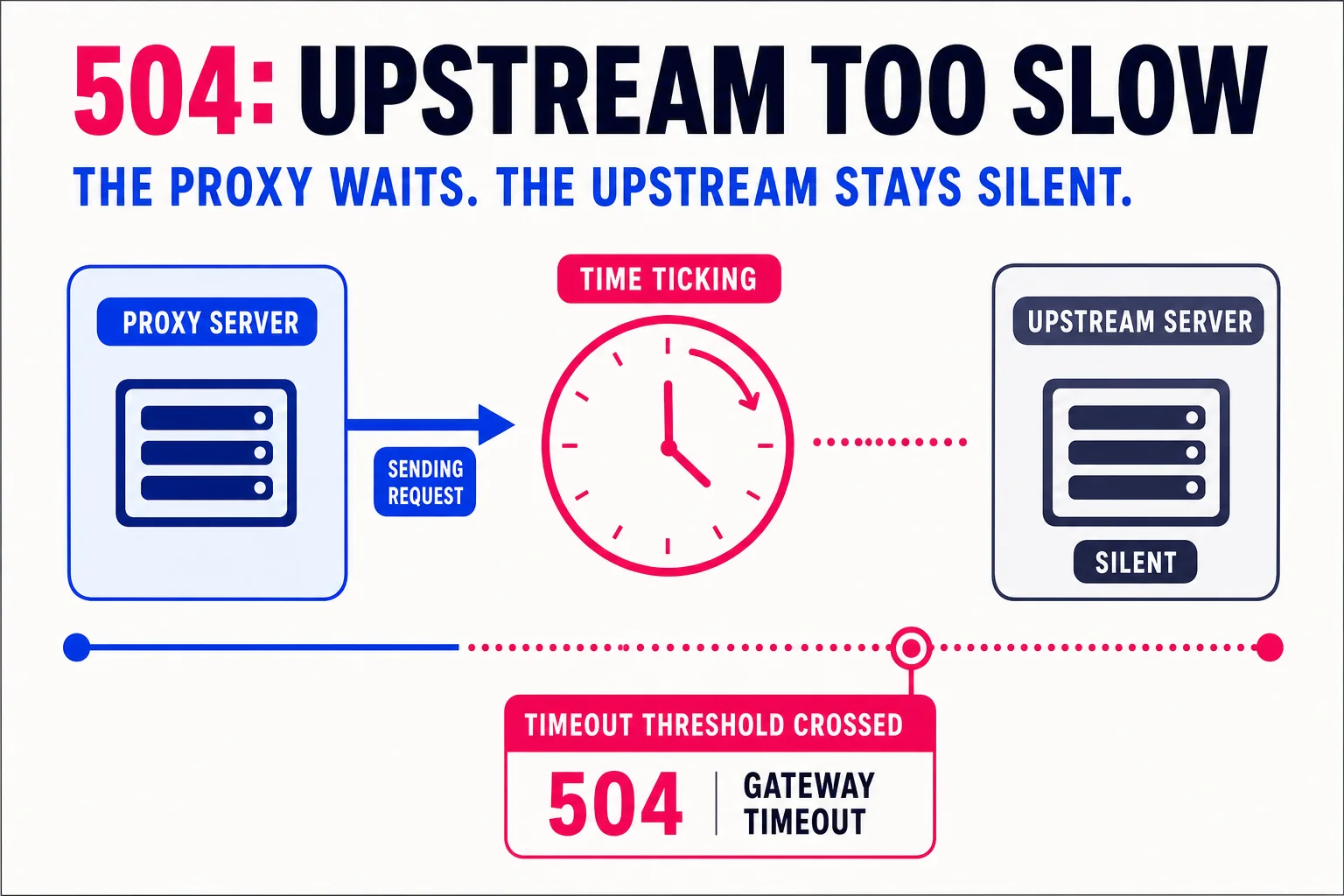
That upstream server could be your app, your database, a third-party API, or something in between. Knowing which one is the entire diagnostic problem, and that requires understanding your stack’s architecture first.
Every layer has a patience limit, and one of them just ran out
Before you can fix a 504, you need a mental picture of what’s actually talking to what. The standard chain looks like this:
Browser → CDN / load balancer → Reverse proxy (Nginx) → App server (Node, Python, etc.) → Database
Each arrow is a handoff. Each layer has its own timeout clock. If any layer waits too long for the one to its right, it gives up and reports the failure upstream.

Here’s the scenario you’ll run into most often: Nginx is waiting on your Node app to respond, but Node is stuck waiting on a slow database query. The database is technically running. Node is technically alive. But Nginx’s proxy\_read\_timeoutreadtimeout` hits 60 seconds, Nginx closes the connection and hands the user a 504, and meanwhile Node finishes its work two minutes later and sends a response that nobody receives.
The error isn’t at the layer that’s slow. It’s at the layer that ran out of patience first. That distinction matters because it tells you exactly where to look in your logs and which config to question.
What’s actually breaking, and how often
Slow upstream responses are the most common culprit by a wide margin. Your app server is waiting on a database query doing a full-table scan or an unindexed join, and the whole chain stalls. You’ll see 504s on specific endpoints rather than site-wide, and your slow query log shows execution times climbing past your proxy’s patience limit.
Overloaded app servers are the second most likely cause. A traffic spike saturates CPU or memory, requests queue up, and response times balloon past the timeout threshold. The tell: 504s spike in bursts that track with traffic, and server resource graphs show CPU or memory near 100%.
Misconfigured timeout values come third. Nginx’s proxy\_read\_timeoutreadtimeout` defaults to 60 seconds, so if your upstream legitimately needs 90 seconds for a valid operation, every request will 504 even though nothing is broken. Short timeouts catch problems fast but create false positives under load; long timeouts mask real slowness. The tell: errors fire at a suspiciously consistent interval, like exactly 30 or 60 seconds, every time.
Network and firewall issues are the least common but hardest to isolate. Packet loss, DNS failures, or a WAF silently dropping connections can all look identical to a slow upstream. The tell: 504s are intermittent and geographically inconsistent.
Start with causes one and two. They account for the overwhelming majority of production incidents.
Find the layer before you touch a single setting
The single most common 504 mistake is adjusting proxy\_read\_timeoutreadtimeout` before knowing what’s actually slow. You raise the timeout, the errors stop, and two weeks later the underlying problem has gotten worse because nobody was watching it. Diagnose first, configure later.
Start with your Nginx error log. Run a quick grep:
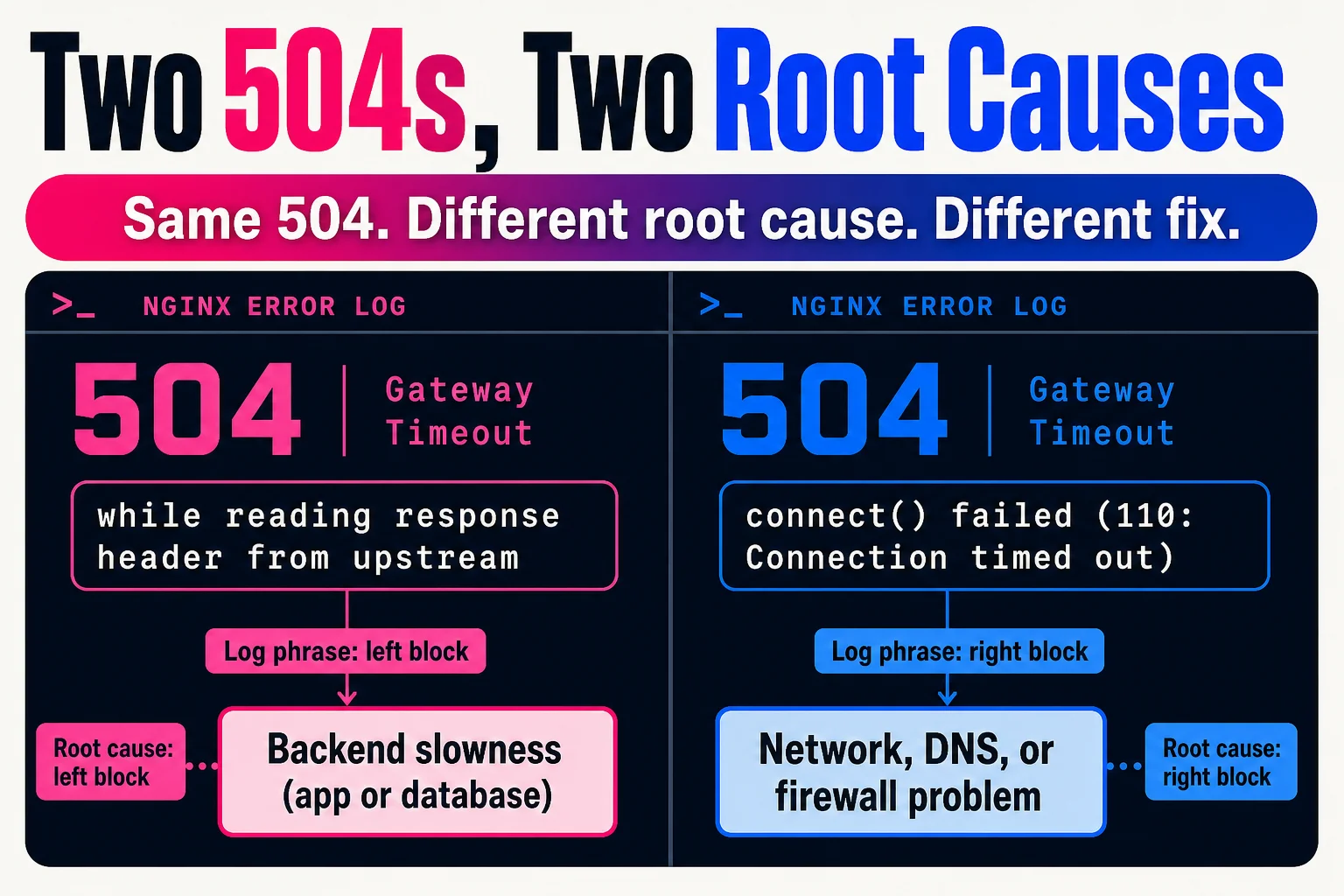
grep "upstream timed out" /var/log/nginx/error.log | tail -50Two phrases tell you a lot. “While reading response header from upstream” means Nginx connected to your backend successfully but the backend never sent a response in time. That points to application or database slowness. A “connect() failed” message instead points to network, DNS, or firewall problems. Same 504, different root cause, completely different fix. The log also shows you the upstream IP:port and the specific request path, so you can tell immediately whether one endpoint is responsible or whether timeouts are site-wide.
Once you’ve confirmed it’s a backend slowness problem, check your app server logs for slow requests at the timestamps that match the Nginx errors. If those requests correlate with database calls, enable slow query logging. In MySQL you can do this at runtime without a restart: SET GLOBAL slow\_query\_log=ON; SET GLOBAL long\_query\_time=2;querylog=ON; SET GLOBAL longquerytime=2;`. In PostgreSQL, `ALTER SYSTEM SET logmindurationstatement = ‘2000’;` followed by `SELECT pgreload_conf();` does the same.
If you want to reproduce and measure the problem directly, curl’s -w flag breaks response time into phases. A high time\_starttransfer value (time to first byte) confirms the backend is the bottleneck.
Only after you’ve identified the slow layer should you even open your Nginx config.
Raising the timeout is almost never the answer
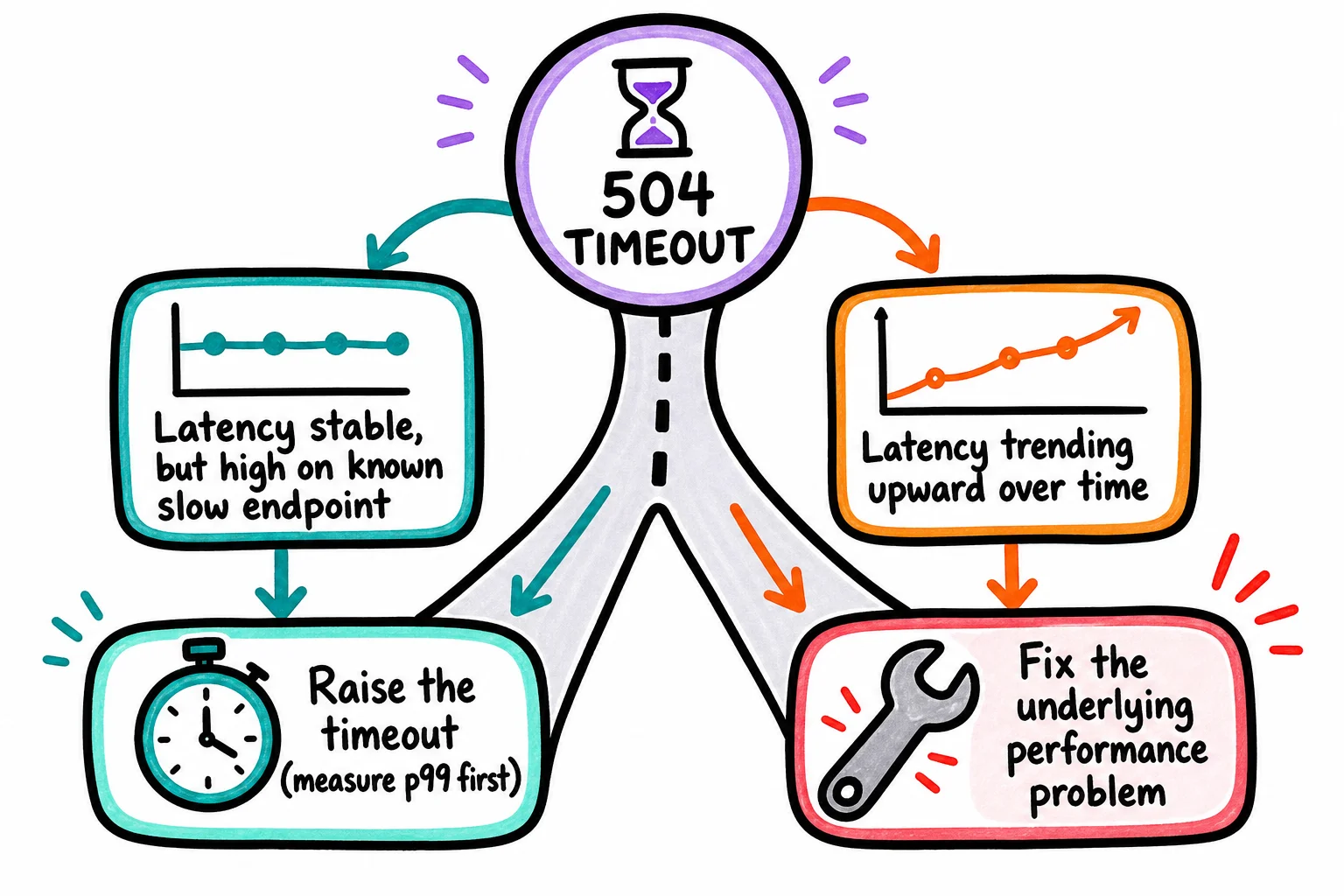
Once you’ve confirmed the backend is slow, you face a binary choice: raise the timeout so fewer requests fail, or fix what’s making the backend slow. Most people raise the timeout. That’s the wrong call most of the time.
Here’s why it backfires. A higher timeout means slow requests stay open longer, holding threads, file descriptors, and memory while they wait. Under load, that resource consumption can cascade: threads saturate, retries pile on, and a slow backend becomes a fully down system. You traded occasional 504s for a potential site-wide outage.
The legitimate exception is genuinely long-running work: a batch export, a report that aggregates a year of data, a file conversion. If your p99 latency on that specific endpoint is 45 seconds and your timeout is 30, raising it makes sense. Set the timeout based on measured high-percentile latency, not a round number someone guessed.
The signal that you need a performance fix instead: p95 response times are trending upward over days or weeks. That’s degradation, and no timeout value stops degradation.
If you find yourself proposing a timeout increase of more than 10 seconds above your current baseline, treat that as a symptom report, not a solution.
Here’s what you actually change
Nginx proxy timeouts are the most common lever, and proxy\_read\_timeoutreadtimeout` is the one that triggers 504s. The default is 60 seconds. If your diagnosis confirmed a legitimately slow endpoint, raise it to 90 or 120 seconds, test incrementally, and watch upstream\_response\_timeresponsetime` in your logs to confirm the change helped. Leave proxy\_connect\_timeoutconnecttimeout` and proxy\_send\_timeoutsendtimeout` closer to their defaults unless you have specific evidence they’re the problem. This change is low-risk to try first, but pair it with monitoring or you’ll miss further slowdowns.
AWS ALB idle timeout defaults to 60 seconds and is configurable up to 4000 seconds via the Console or CLI. The less obvious part: your application’s keep-alive timeout should be set higher than the ALB idle timeout. If the app closes the connection first, the ALB sees a reset mid-request and returns a 504. This is a common, quiet misconfiguration.
Async job queues are the right fix when the work genuinely takes a long time. If an endpoint does something that routinely runs longer than 10 seconds, move it off the request path entirely. Enqueue the job, return a 202 with a job ID, and let the client poll for status. This pattern works with Bull for Node.js, Celery for Python, or Asynq for Go. A rough rule: anything over 500ms that isn’t interactive is a candidate.

The timeout config changes are safe to test in staging and roll out carefully. The async refactor takes more work but permanently removes the failure mode instead of papering over it.
Before you close that ticket, check these
Raising proxy\_read\_timeoutreadtimeout` without diagnosing first is the most common reflex, and it masks the real problem rather than solving it. Users just wait longer before seeing the same failure.
Skipping the logs is how you end up fixing the wrong layer entirely. Teams routinely blame Nginx when the actual slowdown is a database query or an overloaded app server sitting behind it.
Applying one timeout value across every endpoint causes quiet regressions. A fast endpoint that suddenly takes 90 seconds won’t alert anyone if your timeout is set to 120.
Retrying on 504 without backoff can spike your load by several hundred percent within seconds, turning a partial outage into a full one.
The 504 stopped. That doesn’t mean you’re done.
No 504s in dev is a low bar. The real test is whether your fix holds under realistic traffic. Run a load test against the affected endpoint at roughly twice your expected peak, watch p95 and p99 latency, and confirm your 504 rate stays below 0.1% with upstream CPU under 80%. Three clean runs beats one.
After that, watch production metrics for 24 to 48 hours, because averages hide the tail behavior that actually triggers 504s.
For alerting, multi-window burn-rate rules across 2h, 6h, and 24h windows catch recurrence earlier than a single static threshold.
The honest benchmark: no 504s under normal load for a week probably means it’s fixed. 504s that only appear during traffic spikes mean the fix is incomplete.
References
- RFC 9110: 504 Gateway Timeout — IETF
- MDN: 504 Gateway Timeout — MDN Web Docs
- Google SRE Workbook: Alerting on SLOs — Google SRE
- Statsig: Gateway timeout diagnosis and enterprise solutions — Statsig
- Sucuri: What is HTTP 504 Gateway Timeout? — Sucuri
HTTP status code quick links
Use the HTTP status codes guide as the hub for the full cluster, or jump to a specific code:
- 2xx success: 200 OK
- 3xx redirects and caching: 301 Moved Permanently, 302 Found, 304 Not Modified
- 4xx client errors: 401 Unauthorized, 403 Forbidden, 404 Not Found, 410 Gone, 429 Too Many Requests
- 5xx server errors: 500 Internal Server Error, 503 Service Unavailable, 504 Gateway Timeout