
Your Server Just Threw Its Hands Up
A 500 Internal Server Error means the server hit an unexpected condition and couldn’t complete your request. It’s entirely server-side, tells you nothing about what went wrong (intentionally), and can be caused by a dozen different things.
That last part is the key frustration. The 500 code is a catch-all. The server knows something broke; it just won’t say what, at least not publicly.
Where you should go next depends on your situation:
- You’re a visitor who landed on a broken page: start here.
- You own or manage the site: jump to causes and then how to diagnose it.
- You’re a developer looking at logs or a recent deploy: go straight to fixes.
The Server Equivalent of “We’re Having Technical Difficulties”
Imagine you order food at a restaurant. The waiter takes your order, walks to the kitchen, and comes back two minutes later to say “we can’t do that right now.” No explanation. No timeline. Just a polite, blank-faced refusal. The kitchen could be on fire. A cook might have quit. The stove may have shorted out. You will never know, because the waiter’s job is to bring you that single sentence and nothing more.
That is a 500 error.

HTTP status codes are grouped into classes, and the 5xx class covers every situation where the server received a valid request and still couldn’t fulfill it. The problem is on the server’s side, not yours. Within that class, most codes are specific: a 503 means the server is temporarily unavailable and will usually tell crawlers to retry later, while a 502 means a gateway or proxy got a bad response from an upstream server. A 500 is what you get when none of those more specific codes fit. It is the fallback, the catch-all, the “something went wrong and we’re not telling you what.”
The vagueness is intentional. Exposing a stack trace or a database error message to a public HTTP response would hand attackers a map of your infrastructure. So the server logs the real error internally, sends you a blank wall, and forces anyone with access to actually go look at those logs.
Which raises the obvious question: what are they actually hiding?
You probably can’t fix this, but here’s what to try
Most 500 errors are server-side problems you have no access to. That said, a few resolve on their own or trace back to something local, so run through this before giving up.
Hard refresh first. Ctrl+F5 on Windows or Cmd+Shift+R on Mac bypasses your cached error page and sends a fresh request. If the error was a brief hiccup, this sometimes clears it.
Wait five to ten minutes, then retry. Overloaded servers often recover on their own. Retrying immediately just adds to the pile.
Try incognito or a different browser. This won’t fix a real server failure, but it rules out a browser extension or local conflict.
Check whether it’s widespread. If the error persists across devices, Downdetector or OnlineOrNot will show whether others are hitting the same wall. A single outage, like the Cloudflare incident in November 2025 that knocked out hundreds of sites simultaneously, surfaces there fast.
If none of that works, the fix lives on the server. Keep reading.
The usual suspects (and how to spot yours)
The 500 error itself tells you nothing specific. Everything useful is one layer deeper. Before you start randomly toggling plugins or calling your host, scan this list and see if any of these match what happened right before the site broke.
Code errors in a plugin or theme. A plugin update ships with a PHP fatal error, or a theme’s functions.php file has a syntax mistake. WordPress swallows the error message and returns a blank 500. Plugin conflicts are the most commonly reported cause in WordPress support threads, though “most common” varies by site.
A bad `.htaccess` file. An invalid rewrite rule or stray character in .htaccess is enough for Apache to bail immediately. This often happens right after a permalink settings change or a plugin that rewrites that file.
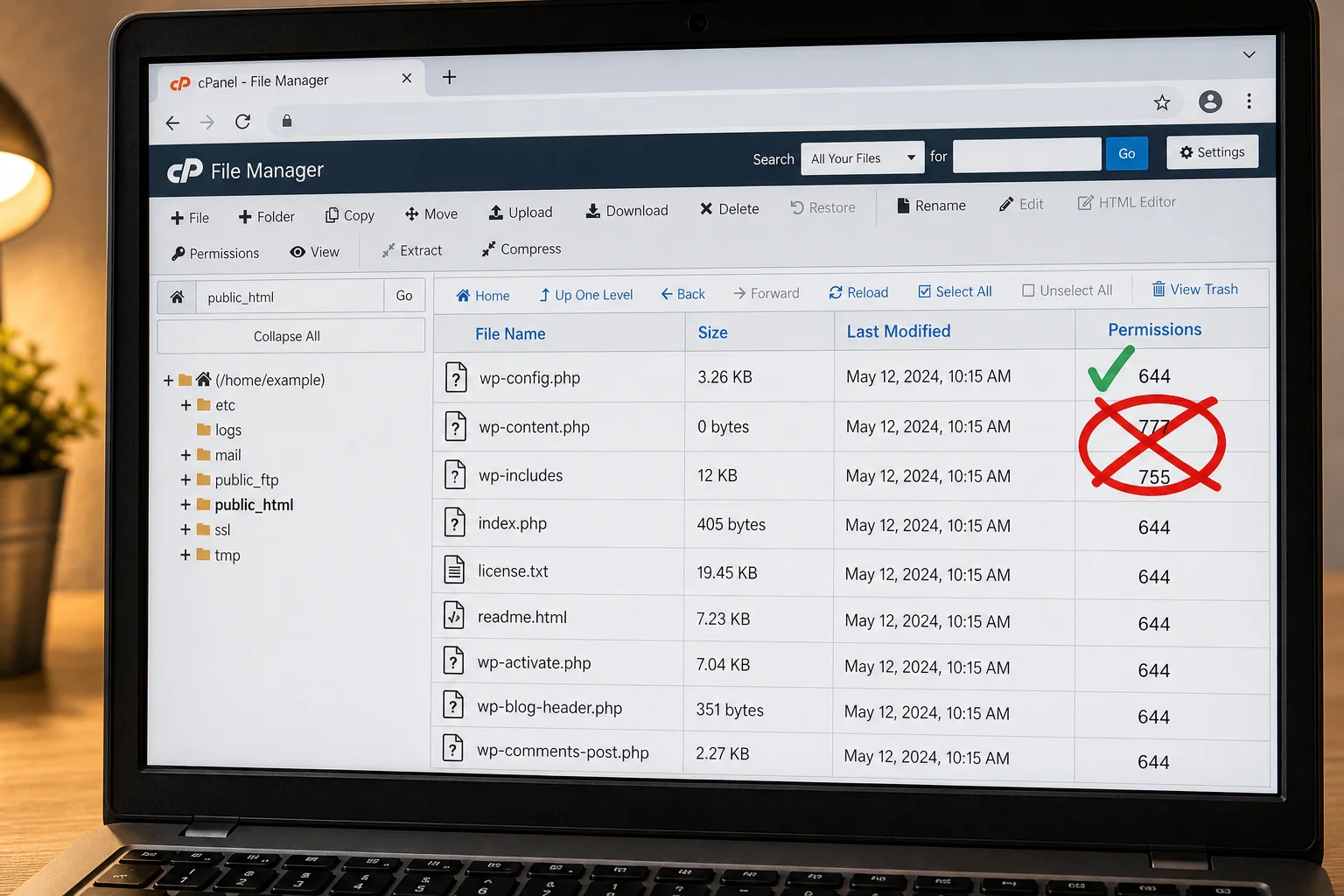
File or directory permissions set wrong. Files need to be 644 and directories 755. If something got set to 777, or the owner was changed to root during a server migration, you’ll see “Permission denied” in your error log rather than on screen.
PHP memory limit exhausted. A script tried to allocate more memory than memory\_limit allows and PHP threw a fatal error. This surfaces more often after installing a memory-heavy plugin or importing a large dataset.
Database connection failure. Wrong credentials in wp-config.php, a crashed MySQL service, or a DB server that’s temporarily unreachable. The application can’t start, so it 500s.
Corrupted core files or a PHP version mismatch. An interrupted update can leave core files half-written. Bumping the server’s PHP version without checking plugin compatibility produces the same result.
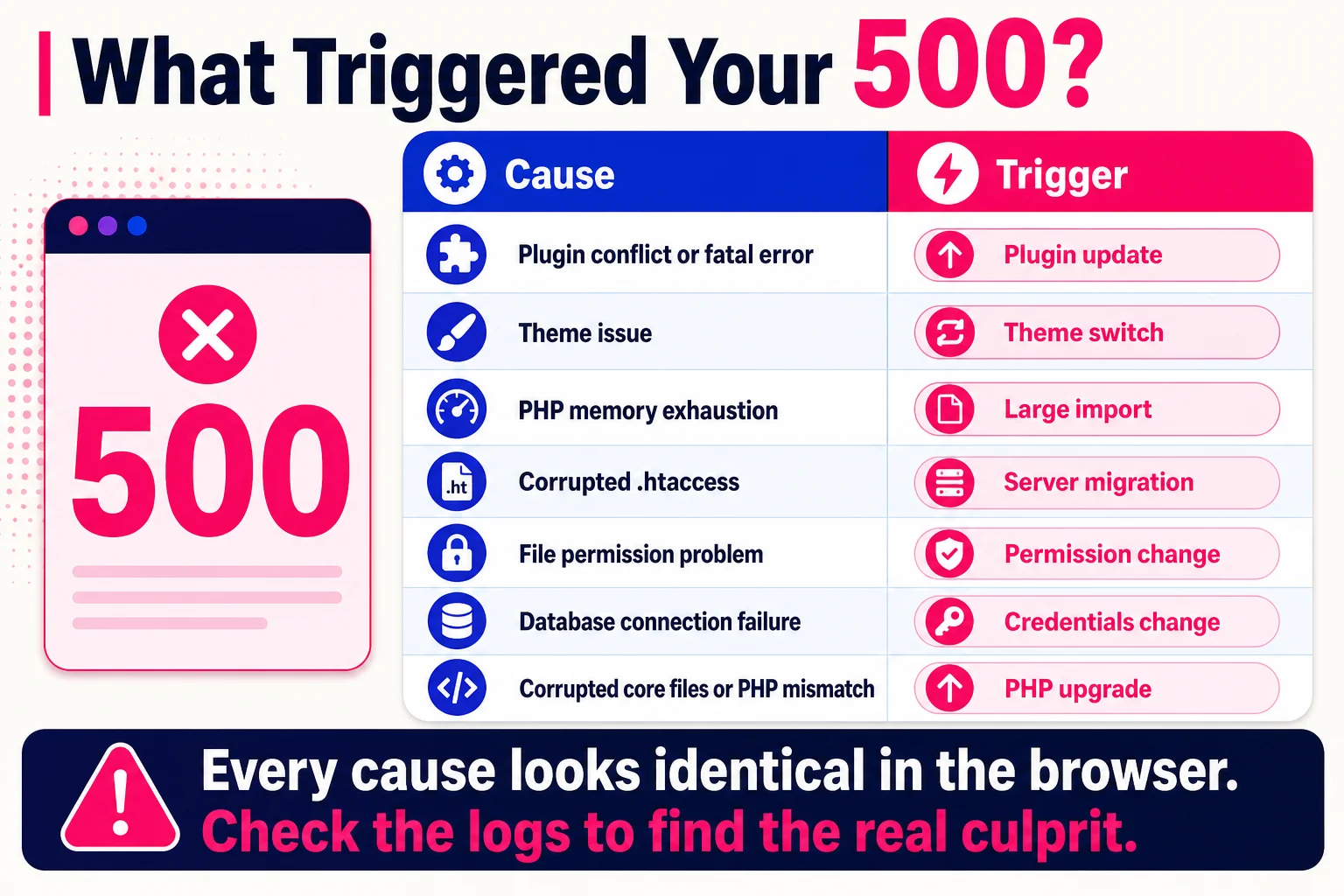
Every one of these will look identical from the browser: a blank page or a generic error message. The logs are where you find out which one you’re actually dealing with.
Read the log before you touch anything
Every one of those causes from the previous section will leave a trace in your error log. The log is the answer key. People skip it and start disabling plugins or bumping memory limits, which turns a five-minute diagnosis into a forty-minute guessing game.
For Apache, the error log is usually at /var/log/apache2/error.log or `/var/log/httpd/errorlog`. For Nginx, check `/var/log/nginx/error.log`. On a shared host, look inside your cPanel’s “Error Logs” section or an `errorlog` file in your site’s root directory.
WordPress buries its own errors by default. To surface them, add this line to wp-config.php:
define('WP_DEBUG', true);Once you do, PHP fatal errors and warnings write to wp-content/debug.log instead of disappearing silently.
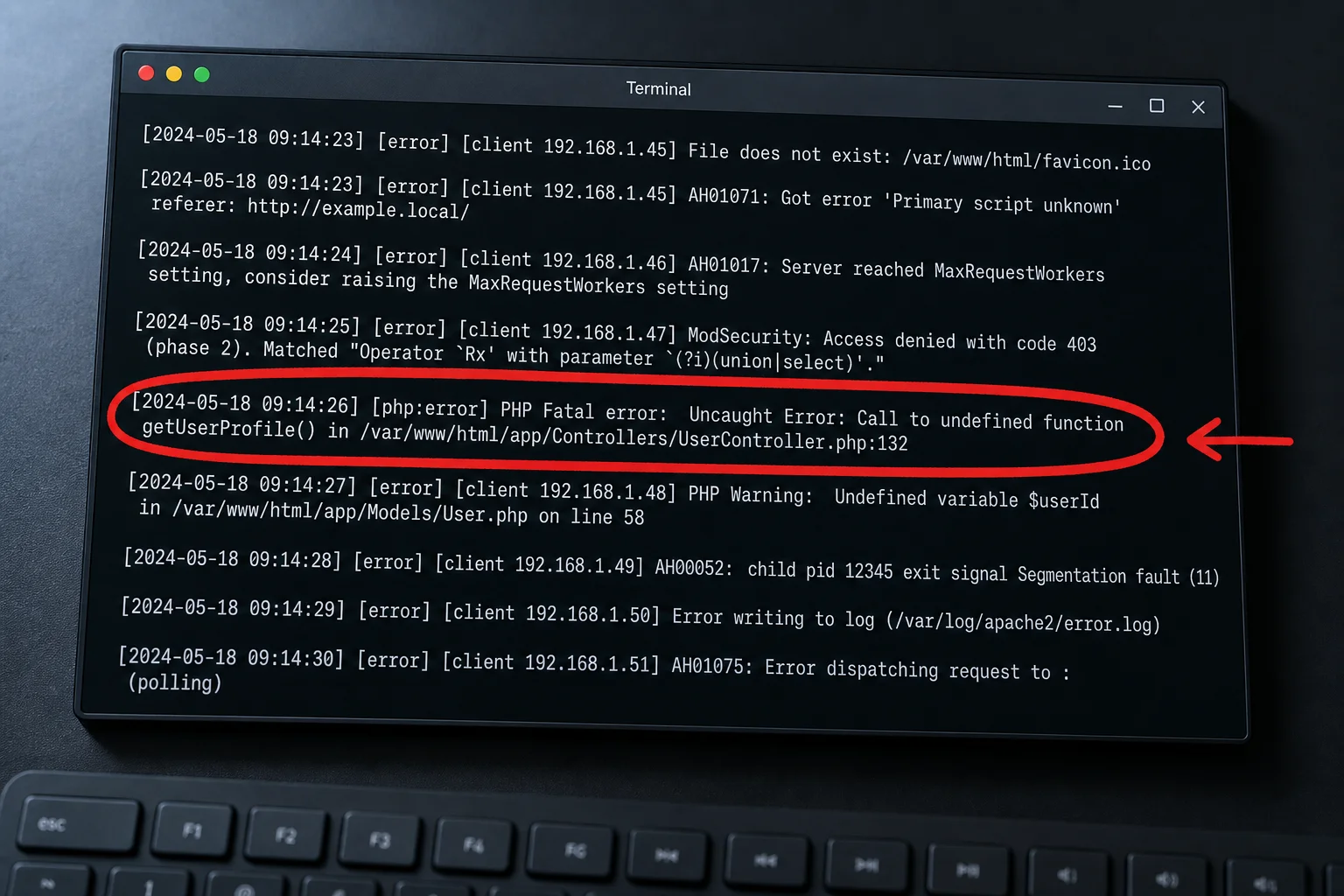
When you open the log, look for the timestamp that matches when the 500 started. The line you want usually contains “PHP Fatal error”, “Permission denied”, or “out of memory”. That single line tells you which cause from the previous section you are actually dealing with.
A parallel first step: think about what changed right before the error appeared. A plugin update, a deploy, a PHP version bump, a .htaccess edit. Changes and log entries together narrow the field fast.
Fix the thing the log is actually pointing at
Match your log output to one of these.
Corrupted `.htaccess`. Go to Settings > Permalinks in your WordPress dashboard, switch to Plain, save, then switch back to your original structure and save again. WordPress rewrites the file automatically. If the dashboard is unreachable, connect via FTP or cPanel File Manager, back up the existing .htaccess, then replace its contents with the default WordPress rewrite block.
Plugin conflict. Deactivate all plugins and reload the site. If it loads, reactivate them one at a time until the 500 returns. The last one you activated is the problem. If your dashboard is down, rename /wp-content/plugins/ to plugins-disabled via FTP, which forces WordPress to skip the whole directory.
PHP memory exhaustion. Add this to wp-config.php:
define('WP_MEMORY_LIMIT', '256M');If nothing changes, your server’s global PHP cap is below 256M and WordPress cannot override it. Check the real ceiling via phpinfo() or WordPress Site Health, then ask your host to raise it.
File permission errors. Directories should be 755 and files 644. Anything more permissive, or owned by the wrong user, can trigger a 500 on some server configurations. Fix permissions via FTP or ask your host.
Database credentials. If your log shows a database connection error, check that the credentials in wp-config.php match what your host has set for that database user. A password reset or a migration is the usual culprit.
If none of these match your log, or you have no log access, contact hosting support with the error timestamp and URL. They can see server-level logs you cannot.
A 500 error won’t tank your rankings overnight, but don’t test that theory
A single 500 during a five-minute deploy window is not a crisis. Google’s crawler handles it the same way a patient visitor would: it retries later, keeps the page indexed, and moves on.
The problem is persistence. If Googlebot keeps hitting 500s over hours or days, it starts crawling those URLs less often. Leave it long enough and affected pages can drop from the index entirely. Google has not published a hard threshold for when that happens, so “fix it fast” is the only safe rule.
Google Search Console surfaces affected URLs under Index Coverage > Server error (5xx). Check there first, prioritize any pages in your sitemap, and pair that data with what your ClickMinded server downtime and SEO notes cover about crawl budget impact.
When you just need the answer fast
| Cause | Quick Fix | Urgency |
|---|---|---|
Corrupt or missing .htaccess | Rename the file, let WordPress regenerate it | High |
| PHP memory limit hit | Add WP\_MEMORY\_LIMITMEMORYLIMIT` to wp-config.php or raise the server cap | High |
| Database connection failure | Check credentials in wp-config.php; restart the database service | High |
| Bad plugin or theme code | Deactivate all plugins via FTP; switch to a default theme | High |
| Wrong file permissions | Set files to 644, directories to 755 via cPanel or SSH | Medium |
| PHP version mismatch | Match PHP version to what your code requires | Medium |
| Recent bad deploy | Roll back the last commit or restore from backup | High |
| Resource exhaustion under load | Check logs for IIS 500.13 or equivalent; scale or queue | Medium |
Every cause above has a line in your error log. 500s are server-side, diagnosable, and fixable once you find it.
References
- RFC 9110: HTTP Semantics — RFC Editor
- MDN: 500 Internal Server Error — MDN Web Docs
- Google Search Central: HTTP status codes and Google crawling — Google Search Central
- Search Engine Land: Fix server error (5xx) in Google Search Console — Search Engine Land
- WordPress.org Support: Common WordPress 500 error troubleshooting — WordPress.org
HTTP status code quick links
Use the HTTP status codes guide as the hub for the full cluster, or jump to a specific code:
- 2xx success: 200 OK
- 3xx redirects and caching: 301 Moved Permanently, 302 Found, 304 Not Modified
- 4xx client errors: 401 Unauthorized, 403 Forbidden, 404 Not Found, 410 Gone, 429 Too Many Requests
- 5xx server errors: 500 Internal Server Error, 503 Service Unavailable, 504 Gateway Timeout