
Your server just hung up on you
You click a link, or type a URL, or hit refresh, and instead of a webpage you get a wall of text that says something like “503 Service Unavailable” or “Service Temporarily Unavailable” or whatever variation your server feels like displaying that day. No page. No content. Just an error.
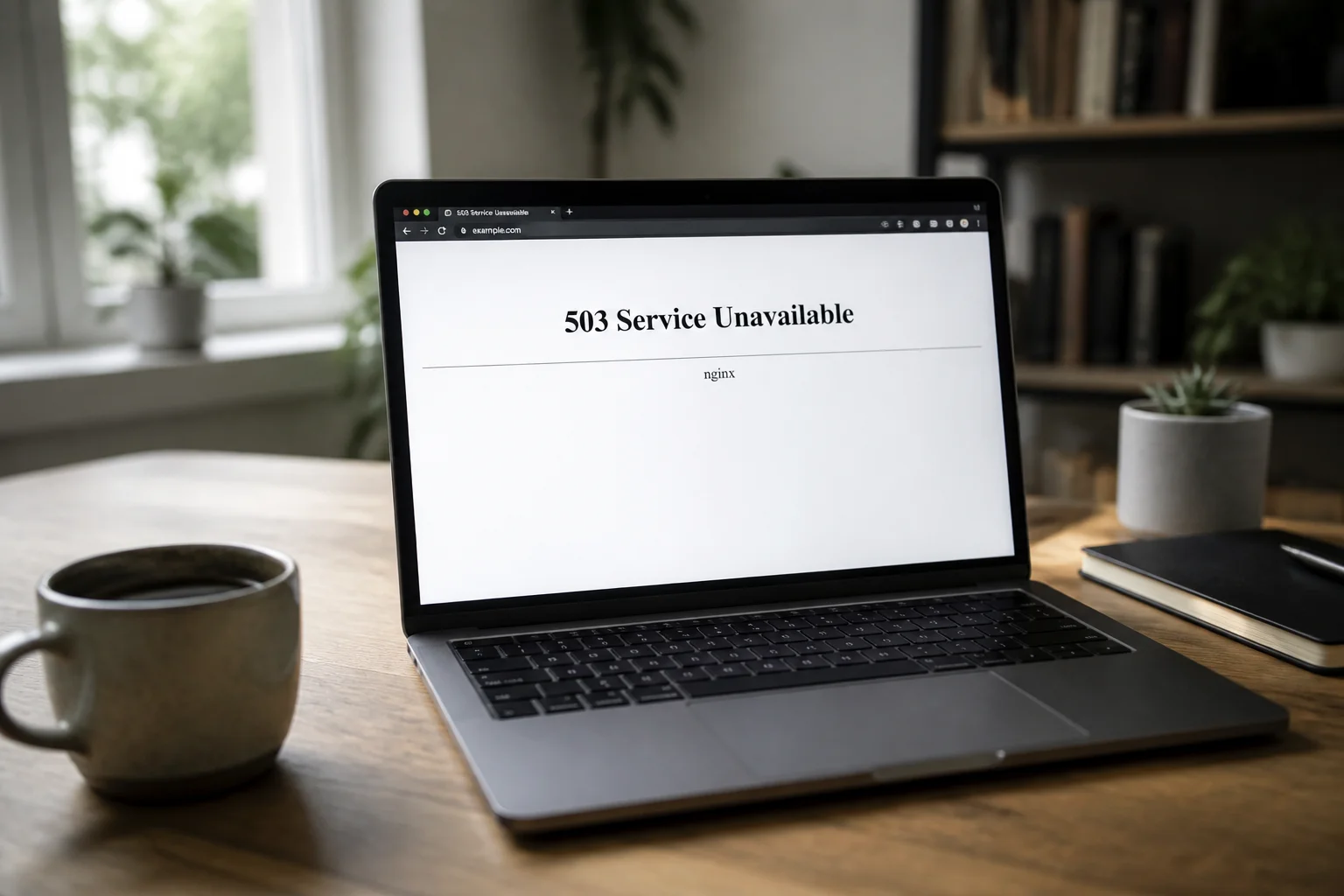
This is an HTTP 503 status code, which is the server’s way of saying: “I exist, I heard your request, and I cannot help you right now.” Not a broken link, not a missing file, not a problem on your end. The server is up, but something is preventing it from handling the request, whether that’s a traffic spike, scheduled maintenance, an exhausted resource pool, or a misconfigured proxy upstream.
The fix depends entirely on which of those it is. This page covers what the 503 response actually signals, the four most common causes, what visitors can do, and how site owners can diagnose and resolve it.
The server isn’t gone, it’s just not taking calls right now
Think of a 503 like a restaurant that’s closed for the night. The building still exists, the kitchen still works, but the lights are off and nobody is answering the door. Come back tomorrow and everything is fine. That’s a 503. Contrast it with a 410 Gone, which is the restaurant that burned down. No coming back from that one.
The key word in every 503 is temporary. The HTTP spec is specific: the server is currently unable to handle the request due to overload or scheduled maintenance, and the condition is expected to pass. It says nothing about the requested resource being missing or moved. The URL is fine. The server just cannot fulfill it right now.
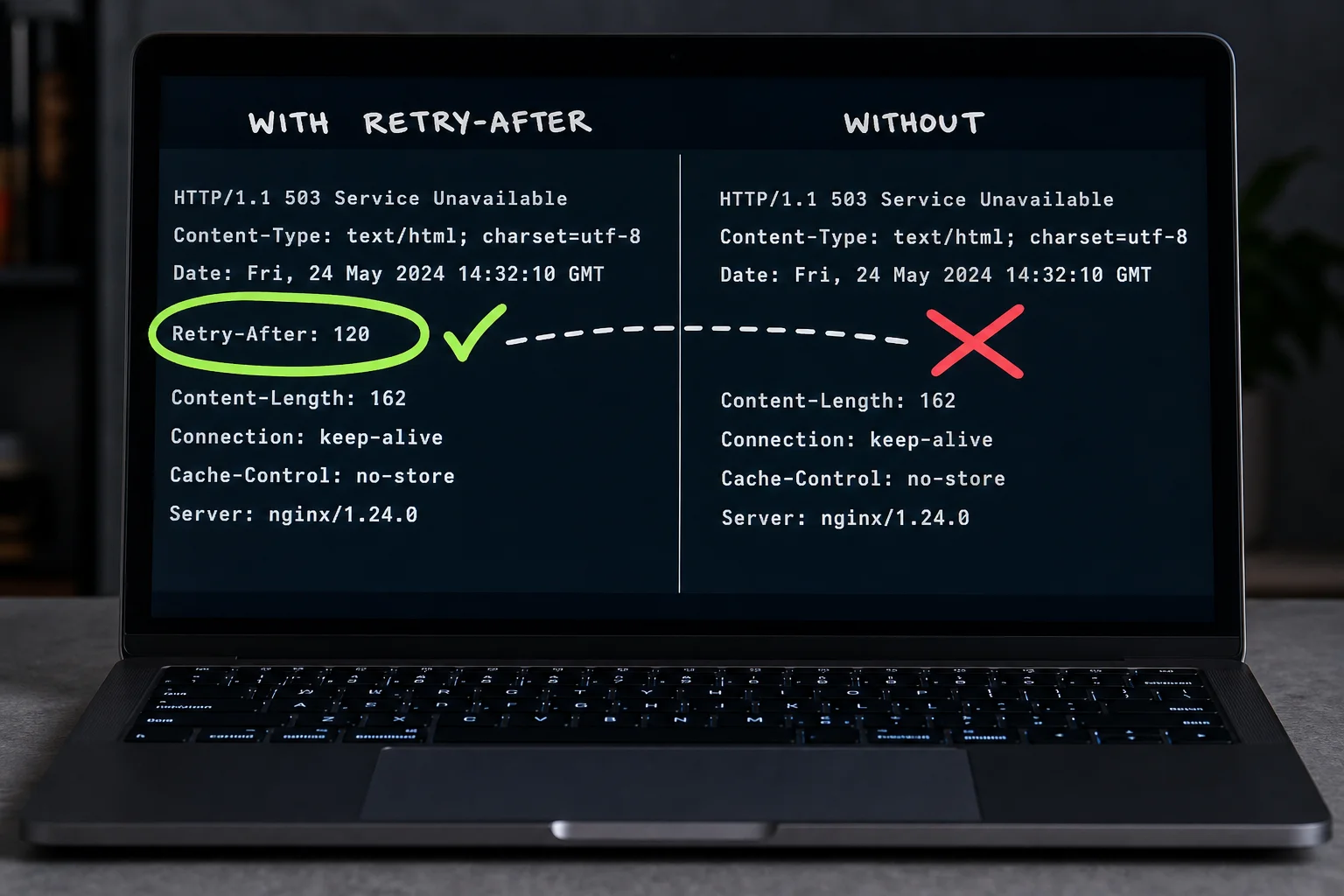
Servers can include a Retry-After header to say when they’ll be ready, either as a number of seconds (Retry-After: 120) or an HTTP date (Retry-After: Wed, 08 May 2026 14:00:00 GMT). When present, crawlers like Googlebot use it to reschedule the request rather than treating the page as gone. Retry logic in APIs and clients should respect it too. When it’s absent, well-written clients fall back to exponential backoff with jitter.
503 is also not 502 or 504. A 502 means a gateway received a bad or invalid response from an upstream server. A 504 means the gateway gave up waiting for the upstream to respond at all. A 503 means the server itself is telling you it’s temporarily out of service. Three different failure modes, one digit apart.
Four reasons your server is waving you off
Knowing a 503 is temporary is useful. Knowing why it’s happening is what lets you fix it. There are four situations that produce almost every 503 you’ll encounter.
1. Maintenance mode
A CMS puts the site into maintenance mode during updates and serves 503 until it’s done. WordPress does this automatically by dropping a .maintenance file in the root directory. Recognize it by the custom “site is down for maintenance” HTML page, sometimes accompanied by a Retry-After header. If the file wasn’t cleaned up after the update finished, the site stays in maintenance mode indefinitely until someone manually deletes it.
2. Server overload or traffic spike
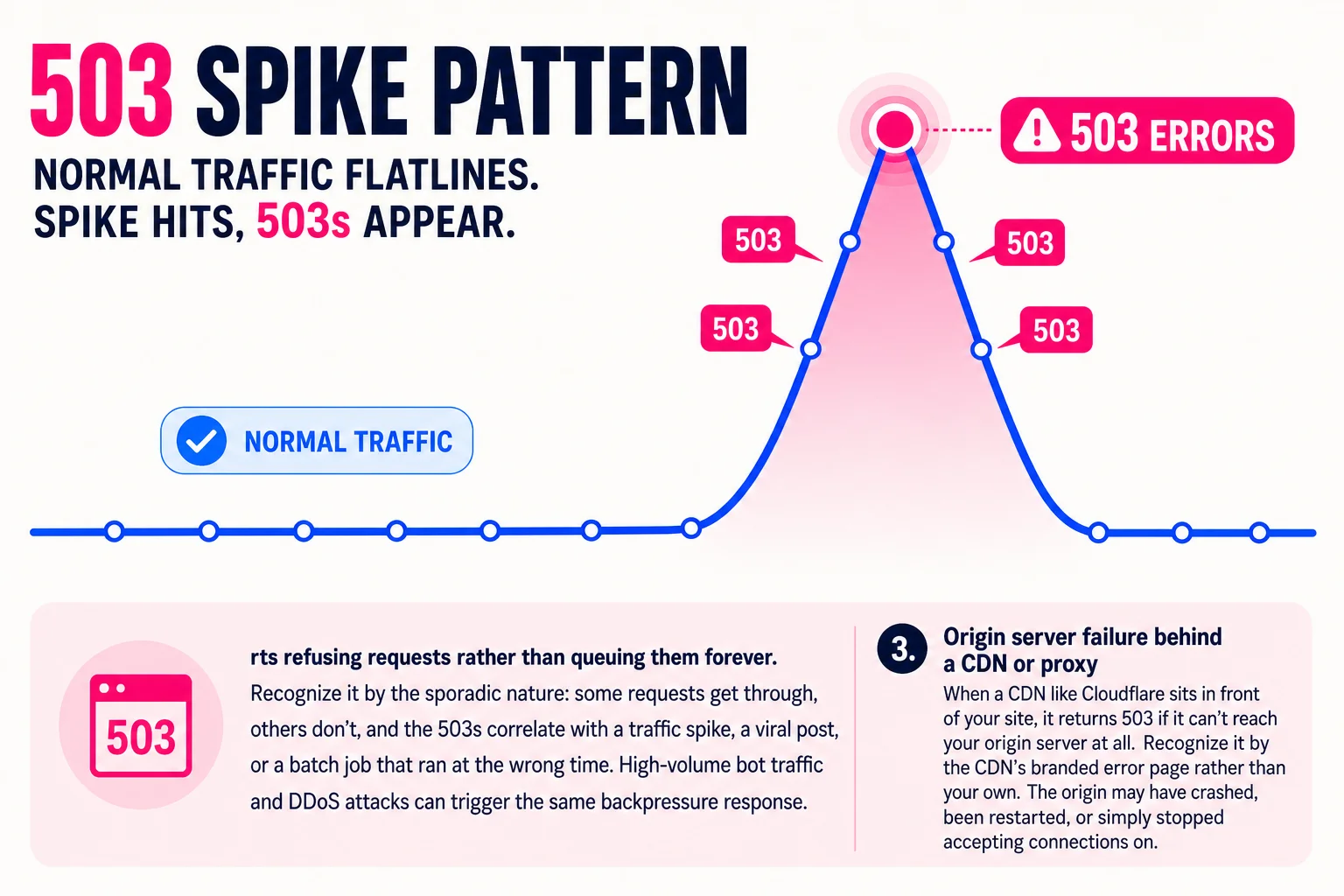
When a server runs out of CPU, memory, or available connections, it starts refusing requests rather than queuing them forever. Recognize it by the sporadic nature: some requests get through, others don’t, and the 503s correlate with a traffic spike, a viral post, or a batch job that ran at the wrong time. High-volume bot traffic and DDoS attacks can trigger the same backpressure response.
3. Origin server failure behind a CDN or proxy
When a CDN like Cloudflare sits in front of your site, it returns 503 if it can’t reach your origin server at all. Recognize it by the CDN’s branded error page rather than your own. The origin may have crashed, been restarted, or simply stopped accepting connections on the expected port.
4. Misconfigured rate limiting
Some server configurations and hosting plans return 503 when a client hits a request limit. This is technically wrong. HTTP 429 is the correct status for rate limiting; 503 means the server is unavailable, not that the client sent too many requests. If you see nginx-ingress returning 503 on rate limit, that’s a misconfiguration worth fixing, because clients and crawlers treat 503 and 429 very differently.
A 503 and Googlebot: how long is too long
Googlebot reads 503 the way the spec intends: temporary, retry later. A few hours of maintenance downtime won’t cost you rankings. Add a Retry-After header and Googlebot will back off until the suggested time instead of logging a crawl failure.
Duration is where it goes wrong. Community guidance in Google’s support threads points to rough thresholds: under 24 hours is fine, one to seven days carries minimal risk if you’re watching, and anything past seven days puts pages at real deindexing risk. If you expect downtime to stretch that far, a 200-level placeholder is safer than holding the 503.
Planned maintenance with Retry-After is harmless. An unplanned outage that drags past a week is an SEO emergency. If that scenario would catch you off guard, that’s a monitoring gap worth closing before it becomes a ranking gap.
You probably can’t fix this one, but here’s what to try
A 503 is the server’s problem, not yours. That said, a few low-cost checks are worth running before you give up.
Reload the page first. Some 503s resolve within seconds if the server was briefly overloaded. If that does nothing, wait two or three minutes and try again. A server recovering from a traffic spike will often come back on its own.
If the site still won’t load, check DownDetector or IsItDownRightNow to confirm the outage is real and not something weird with your connection.
Trying a private/incognito window costs nothing and rules out a stale local session, even though 503s almost never originate there.
If the site stays down for hours, contact the site owner directly. Resolution requires someone with server access. If you’re that person, the next section covers the full diagnostic process.
Your server’s sending 503s. Here’s where to actually look.
Start with the logs. On Apache, check /var/log/apache2/error.log (Debian/Ubuntu) or `/var/log/httpd/errorlog` (RHEL/CentOS). On Nginx, check `/var/log/nginx/error.log`. Scan for `[mpmprefork:error]`, reached pm.max\_children, upstream timed out, or no live upstreams. Those phrases tell you whether you’re dealing with process exhaustion, a timeout, or a dead backend.

Work through this sequence:
- Check whether your web server is running.
systemctl status nginxorsystemctl status apache2tells you immediately. A crashed service is the fastest fix: restart it, then watch whether it crashes again. - Check system resources. CPU sustained above 90% or RAM below 10% means requests are queuing and getting dropped.
toporhtopgives you a live view. - Check PHP-FPM if you’re running PHP.
reached pm.max\_childrenin the PHP-FPM log means your pool is exhausted. To raise the limit safely: divide the RAM you can dedicate to PHP by the average memory per worker (check withps --no-headers -o rss -C php-fpm), then round down. - WordPress on shared hosting? Start in cPanel or Plesk, not the terminal. Check the error log there, then disable plugins one at a time to find a runaway process. OPcache and a full-page cache plugin cut PHP worker demand significantly.
- Running behind Cloudflare? A Cloudflare Error 503 means either Cloudflare is rate-limiting the request, or it reached your origin and got nothing back. The reference code on the error page tells you which. Origin failures need fixes on your server; Cloudflare-side failures point to firewall rules or plan limits in your dashboard.
Three mistakes that will make your 503 situation worse
Returning a maintenance page with HTTP 200 is the most common one. Search engines index the 200 as real content, which can replace your actual pages in search results. Return 503 with a Retry-After header instead.
Using 503 for rate limiting is semantically wrong. RFC 7231 reserves 503 for server-side conditions; RFC 6585 gives you 429 for client limits. Return 503 for rate limiting and monitoring systems treat it as an outage and fire alerts. The Kubernetes ingress-nginx default does exactly this, which is why it keeps appearing in incident reviews.
Ignoring intermittent 503s is the third. Occasional errors feel like noise, but they usually mean a thread pool or connection pool is hitting its ceiling under load. That ceiling does not move on its own.
The short version, if you only read this far
503 means the server is temporarily unavailable. It is always server-side, never your fault as a visitor, and almost always fixable.
- What it is: A temporary condition, not a permanent resource problem
- Retry-After: Include it; it helps crawlers and monitoring tools back off gracefully
- SEO risk: Low for short outages, real for anything lasting more than a few hours
- Rate limiting: Use 429, not 503
- First diagnostic step: Check your logs before touching any configuration
For the full picture on how 503 fits alongside other server errors, see the ClickMinded HTTP status codes guide.
Temporary, fixable, diagnose before you touch anything.
References
- RFC 9110: 503 Service Unavailable — IETF
- MDN: 503 Service Unavailable — MDN Web Docs
- Google Search Central: HTTP status codes and Google crawling — Google Search Central
- MDN: Retry-After header — MDN Web Docs
- Kinsta: How to fix HTTP Error 503 — Kinsta
HTTP status code quick links
Use the HTTP status codes guide as the hub for the full cluster, or jump to a specific code:
- 2xx success: 200 OK
- 3xx redirects and caching: 301 Moved Permanently, 302 Found, 304 Not Modified
- 4xx client errors: 401 Unauthorized, 403 Forbidden, 404 Not Found, 410 Gone, 429 Too Many Requests
- 5xx server errors: 500 Internal Server Error, 503 Service Unavailable, 504 Gateway Timeout